A simple guide to
Aerial Editor.
Demo video
Choose a tool
No matching tools. Try another word or ask us.
Open the editor
Start here
Your first edit, without the long manual.
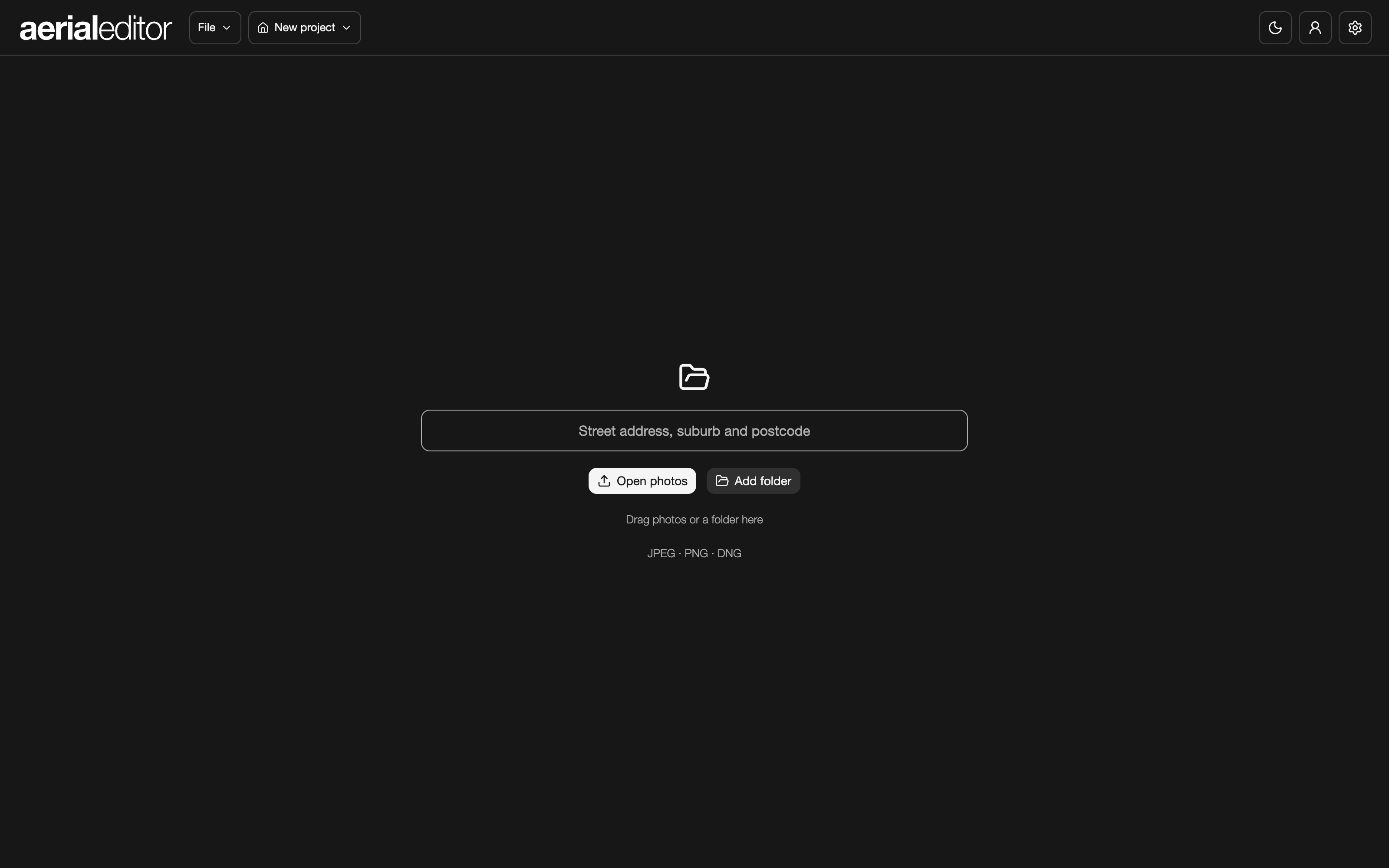
1Bring in your photos
Enter the property address, then click Open photos or Add folder. You can also drag photos or a folder straight into the editor. JPEG, PNG and DNG are supported.
2Choose the workspace
Use POI Location for nearby-place pins and a map. Choose Plain Photo for a clean photo edit. Both let you add boundaries.
3Make it yours
Pick a photo along the bottom, then choose a tool on the left. Start with Colour if you want a grade, or go straight to the feature you need. The × on a thumbnail removes it from this project.
4Save, then export
Use File → Save project to keep your editable work. Use File → Export when you want the finished images.
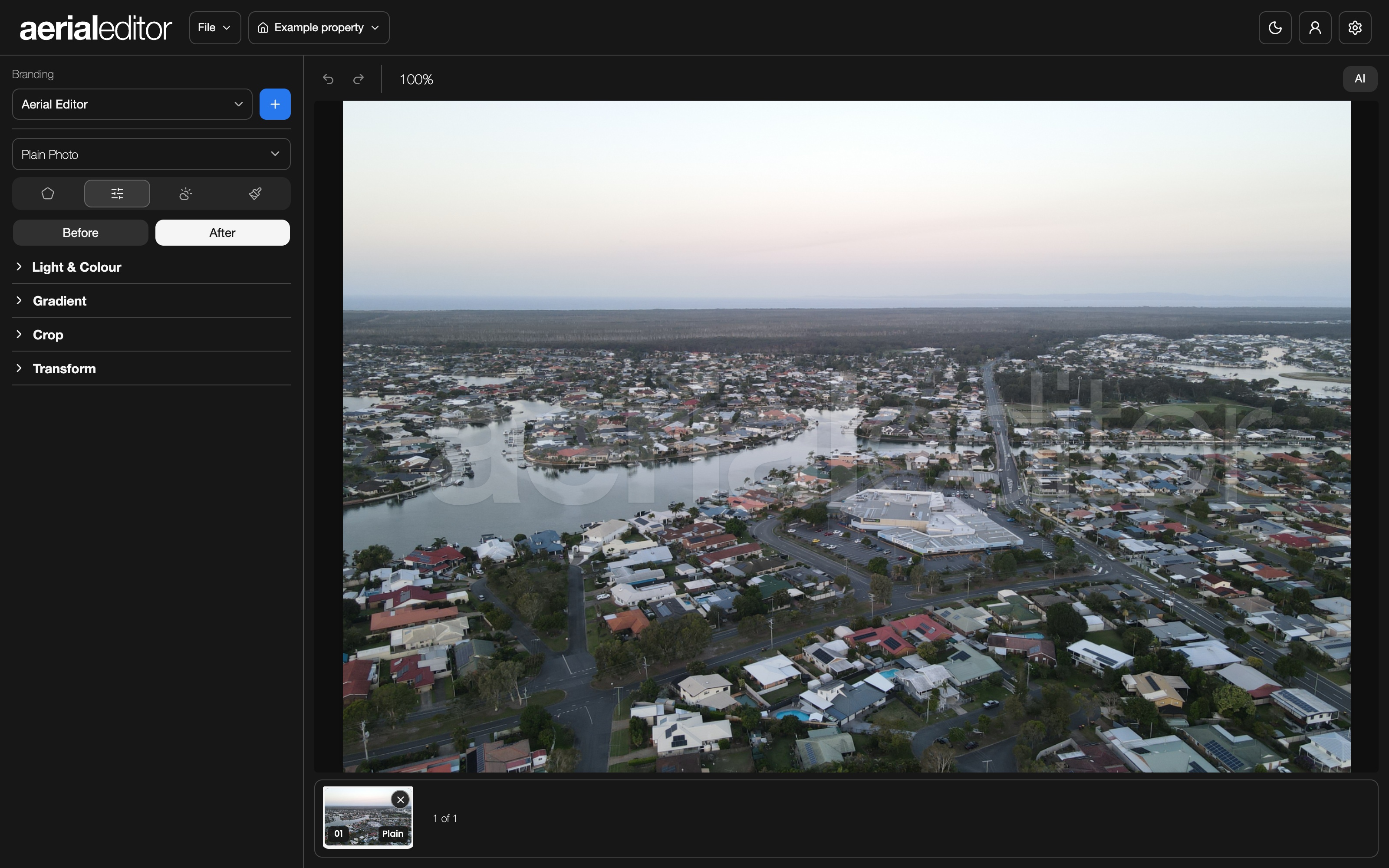
Photo type → POI Location
POIs & the map
Show what’s nearby, then put every label where it belongs.
1Find nearby places
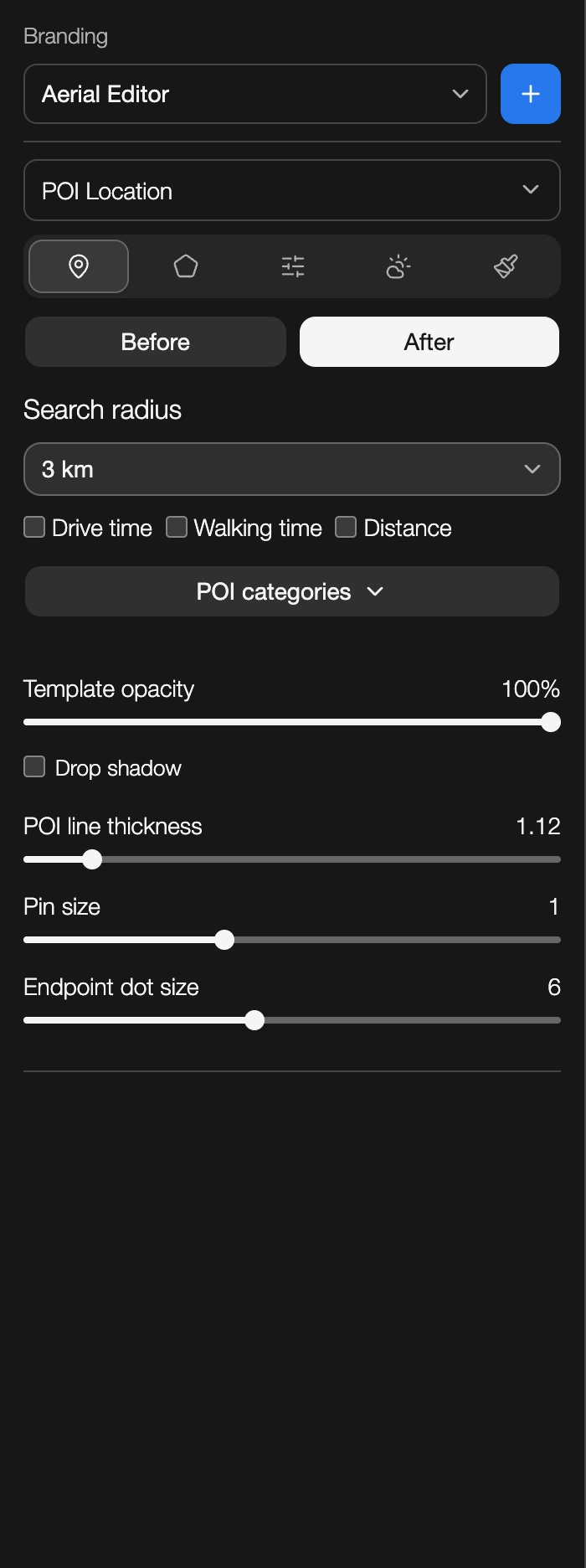
Choose POI Location, confirm the property address and check the house marker on the map. Pick the categories and search radius you want. Refresh updates the nearby places.
2Add or move a pin
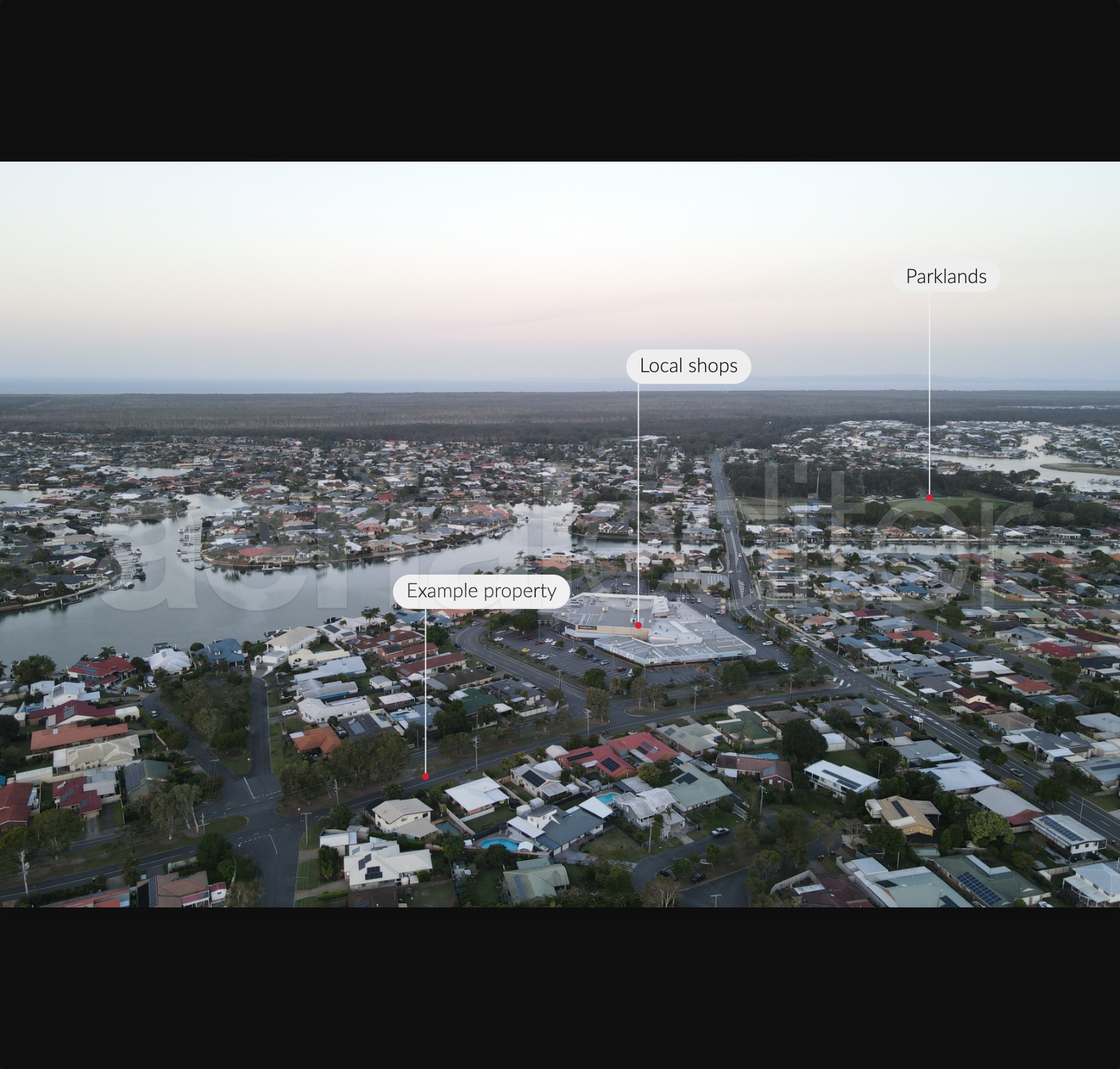
Choose a nearby place to add it to the image. Drag the label to tidy the layout, and drag its endpoint onto the right landmark. Double-click a pin’s text to rename it. Select a pin to see its editing controls.
3Add your own
Use Add Pin for a place that’s missing. Place house pin marks the property. Align Pins tidies the labels; Hide Pins lets you check the photo underneath.
4Add travel details
Turn on Distance, Drive time or Walking time in the POI options. Travel times need a route lookup, so let them finish before exporting.
5Check the map
Use the house button to return to the property, Show all places to fit the results, and Satellite to change the view. If the camera direction is wrong, open its view controls and use Aim on map, then Apply.
Creating a separate location map
- Location-map artwork
- If Generate location map is available on your account, confirm the property location first. It adds a separate map image to the shoot. Use its side panel to pick places, a colour palette, a radius and an image shape, then export it like a photo.
Branding, at the top of the sidebar
Branding & templates
Give your property pins the right look for the agency.
1Pick an agency
Search the Branding box and choose a template. It applies across the project, so the shoot stays consistent.
2Adjust the look
In Pins, change template opacity, line thickness, pin size and endpoint dots. House pin size appears when the selected template uses a house marker.
3Make a template
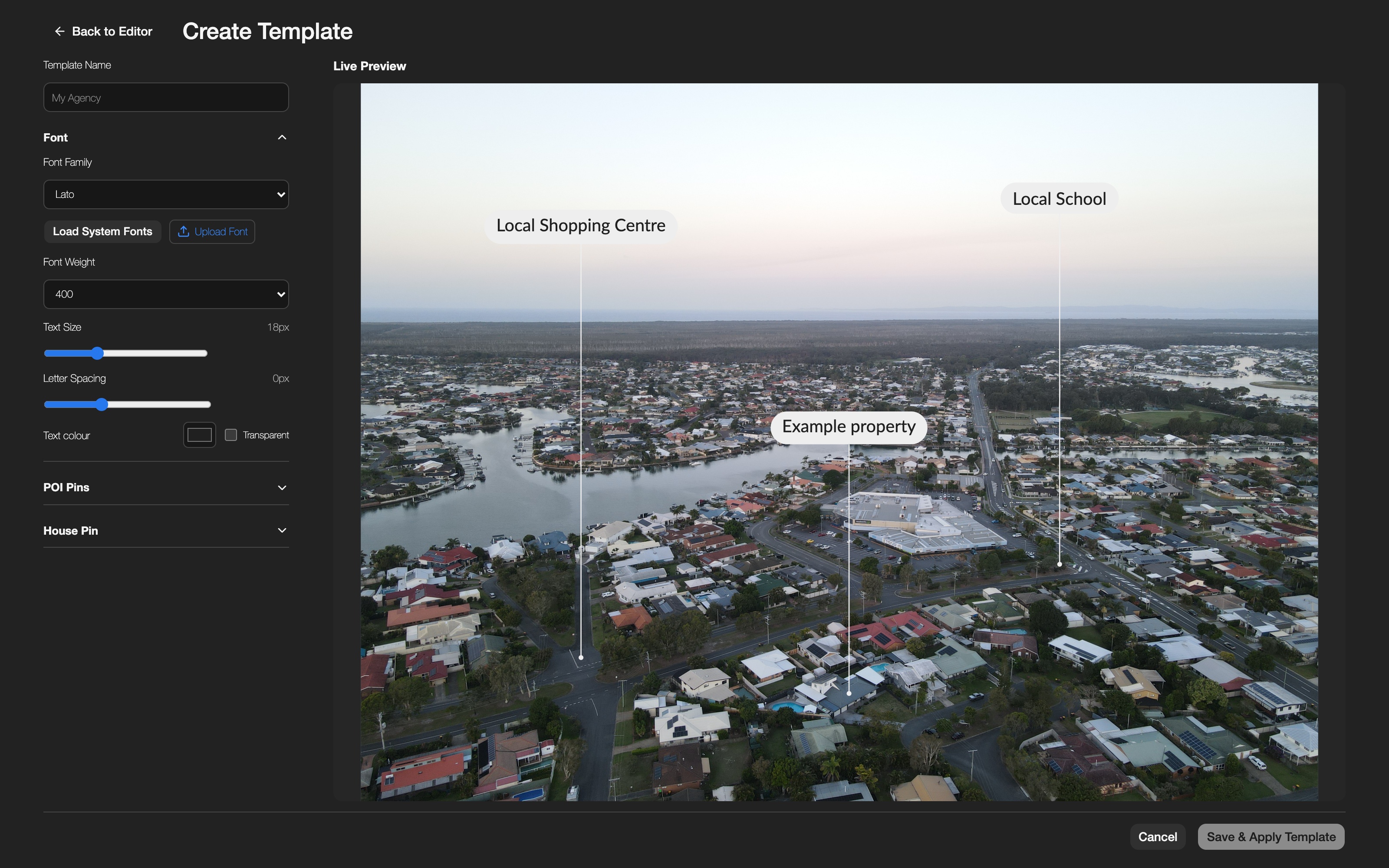
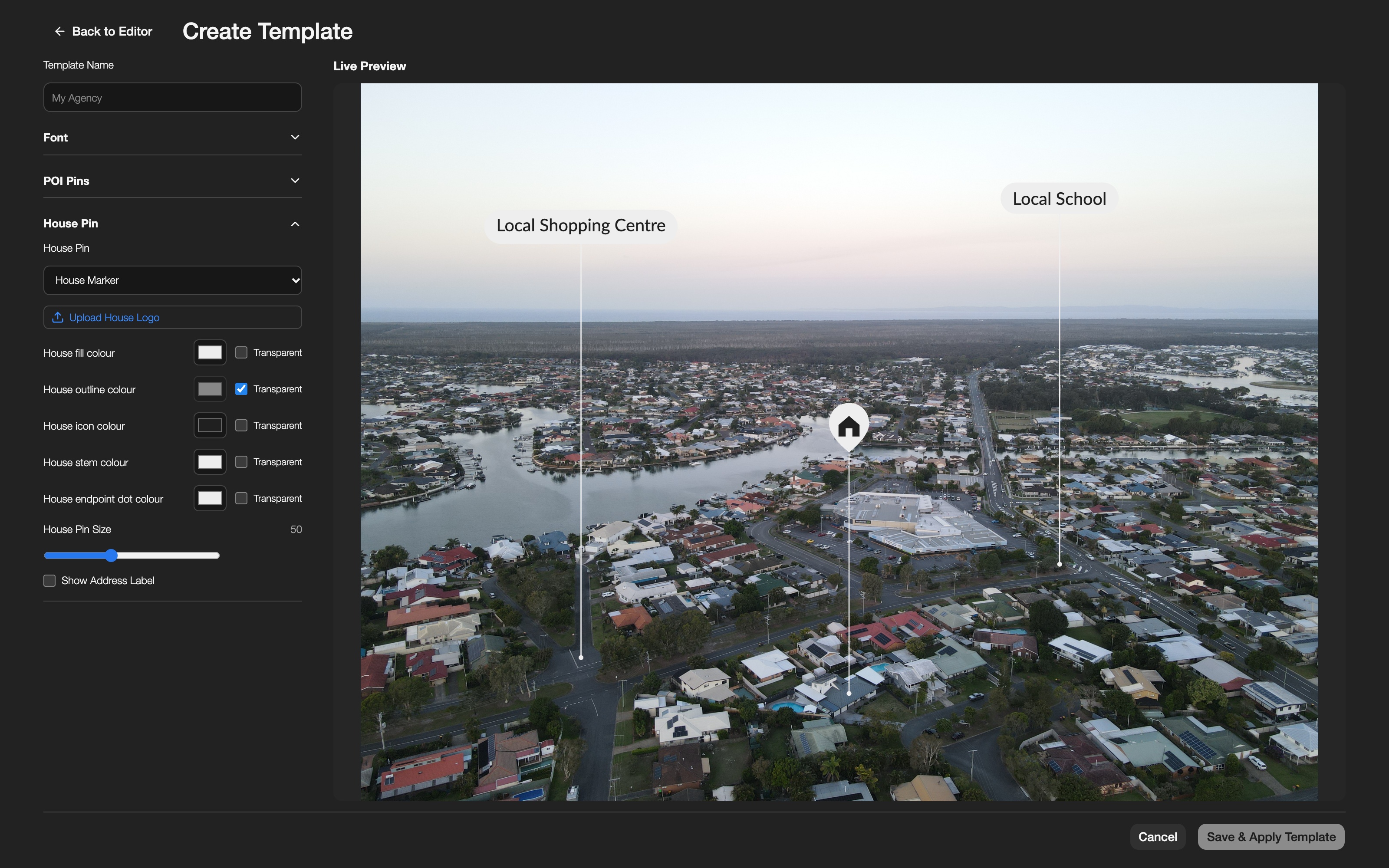
Click the + next to Branding to open Create Template. Font controls the type and text colour. POI Pins and House Pin each have their own fill, outline, stem and dot colours; Transparent switches a layer off. Save & Apply Template keeps the design for another shoot.
4Use your own logo or font
Under House Pin, choose Upload House Logo for a custom property marker. In Font, Upload Font adds your typeface. Load System Fonts uses installed fonts when your browser supports it.
5Bring an existing design
Open the Branding menu and choose Upload new AI file… for a supported Illustrator or PDF template. Check the imported text and layout before using it.
Boundary tab
Boundaries, lines & text
Outline the lot, highlight the property or sketch a development plan.
1Start with the lot
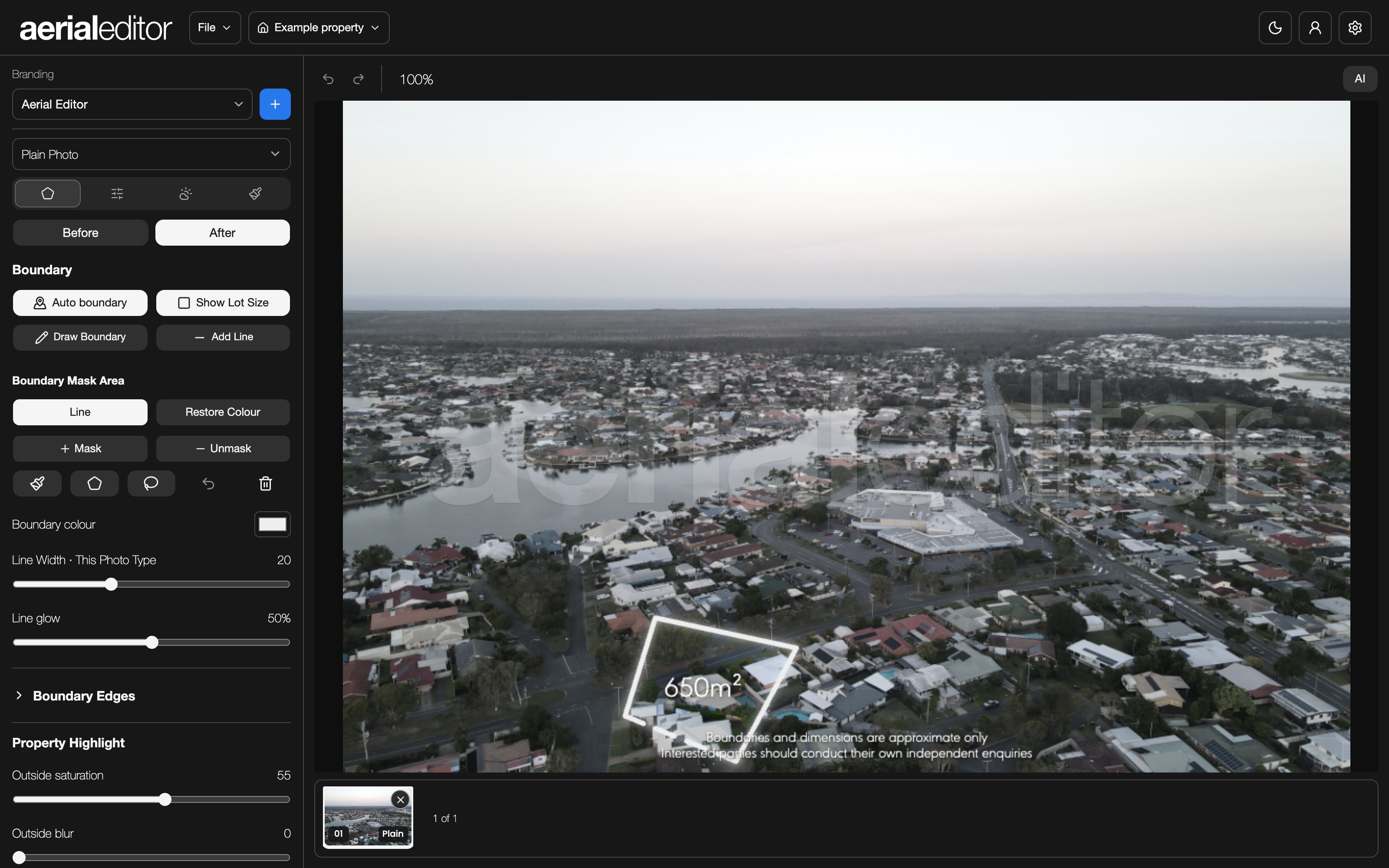
Click Auto boundary to look up the property’s cadastral outline where coverage is available. Choose a lot if asked. Show Lot Size turns its area label on or off.
2Draw it yourself
Click Draw Boundary, click around the property, then close the shape at the first point. Click an edge or corner to adjust it. The move, rotate and resize handles help it fit the photo.
3Style the outline
Choose the line colour and thickness. Set individual edges to solid or dashed when you need a different look, such as a waterfront quayline.
4Add more lines or lots
Draw Boundary adds another outline. Add Line draws an open line for a subdivision or development plan. Use the boundary selector to switch between the items you’ve added.
5Highlight and label
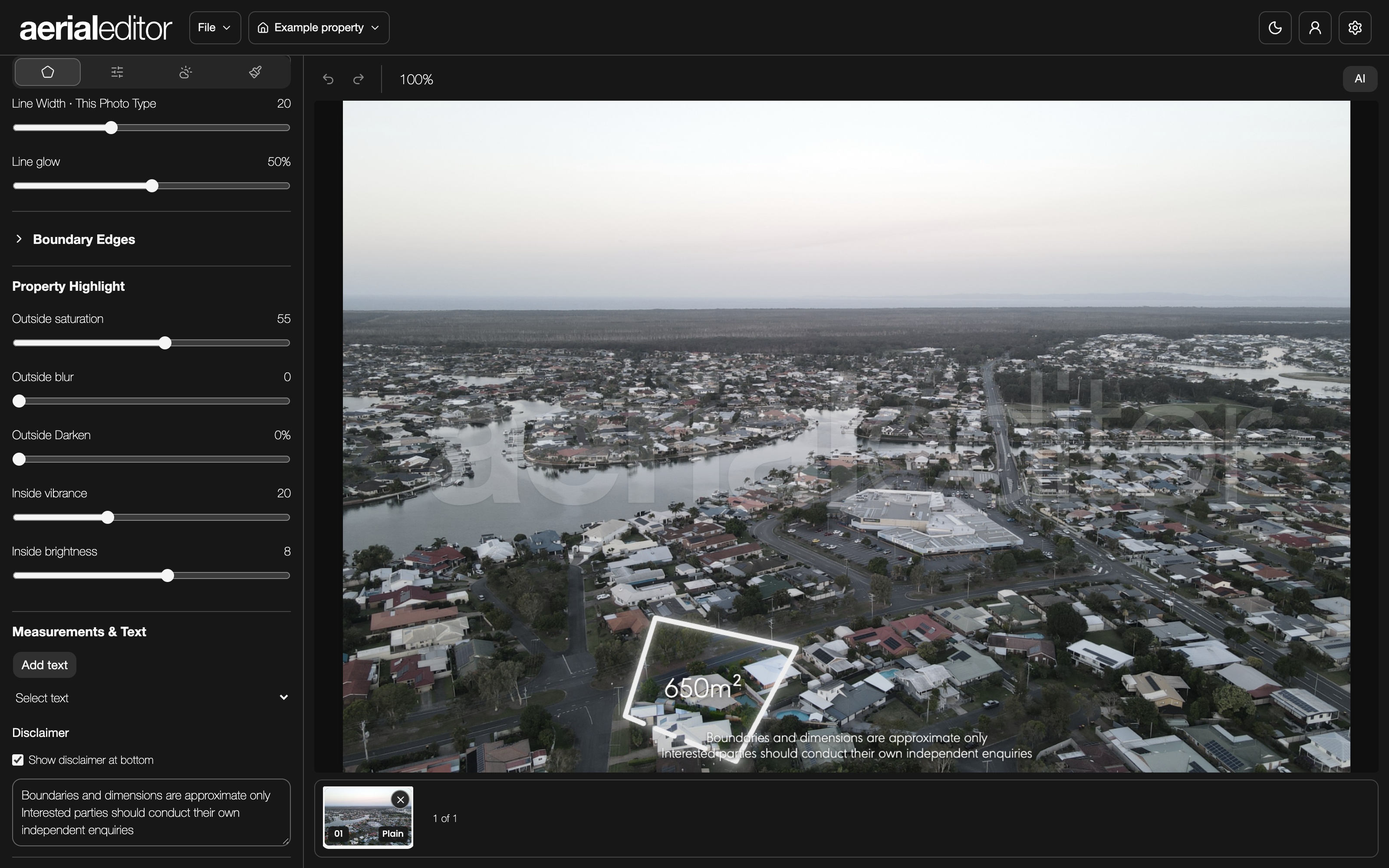
Property highlight controls the colour and darkness outside the lot. Under Measurements & Text, use Add text for a custom label, or select the lot-size label to edit it. Drag labels into position.
6Tidy an overlap
Use the boundary Mask/Unmask tools on Line to hide or restore sections behind objects. Restore Colour changes where the outside-property treatment applies. Edit the disclaimer here too.
Colour → Light & Colour
Colour & detail
Make the photo brighter, warmer or cleaner. You choose how much.
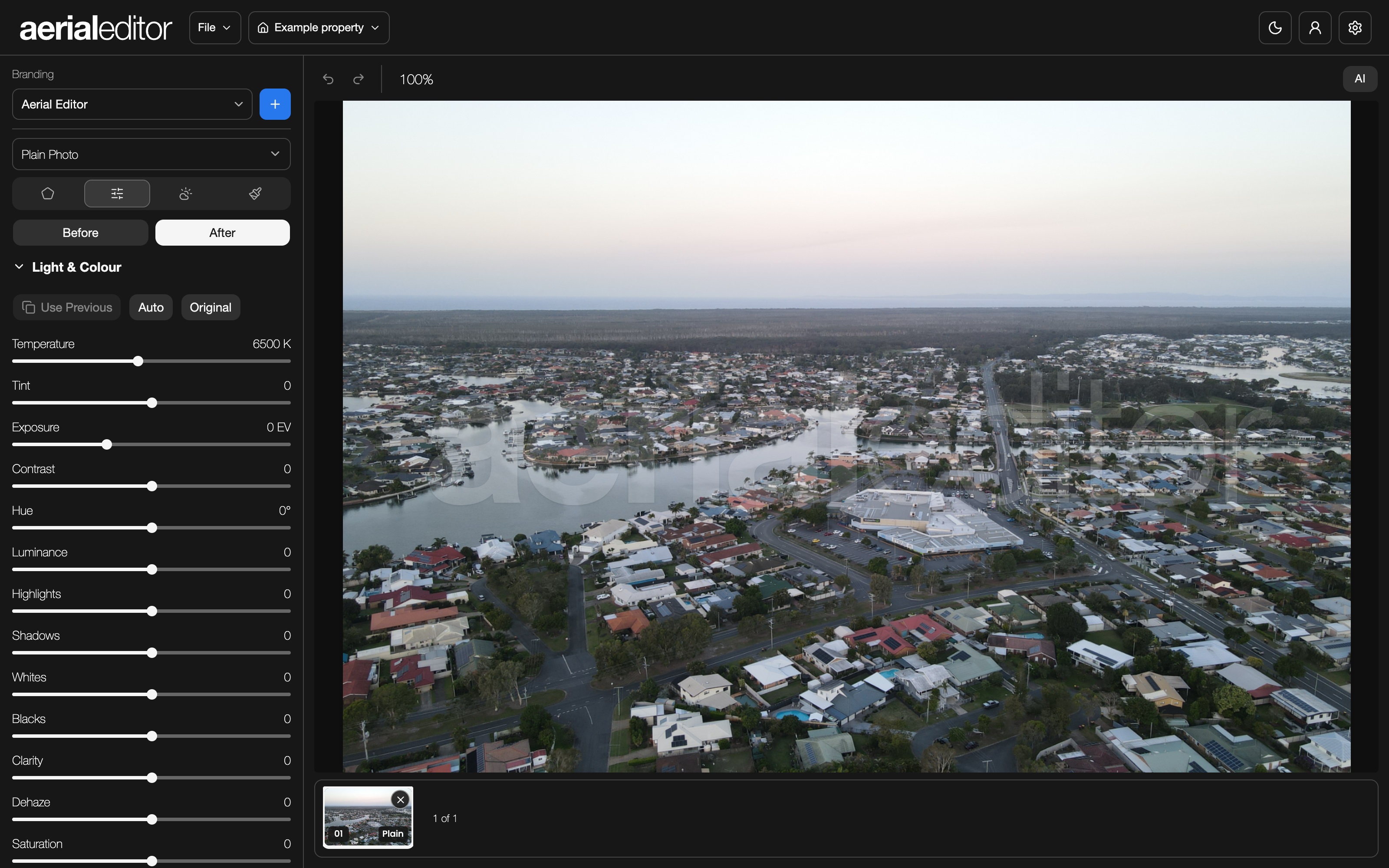
1Try Auto, if you want
Open Light & Colour and click Auto for a starting grade. It only runs when you ask. If a replacement sky is in use, Auto grades the ground while keeping the sky edits.
2Fine-tune
Start with Exposure, Shadows and Highlights, then adjust Temperature and Saturation. Small changes usually look best. Before and After let you compare.
3Match the next photo
Use Previous copies the colour settings from the previous worked photo. Original restores the original colour for the current scope.
4Work on sky or ground
When available, the Sky/Ground button switches which part you’re grading. Feather Horizon softens the join. Some accounts also have a Day/Twilight toggle for the Auto style; changing it alone doesn’t regrade existing photos.
What does each slider do?
- Temperature / Tint
- Temperature moves between cool and warm. Tint corrects green or magenta casts.
- Exposure / Contrast
- Exposure changes overall brightness. Contrast changes the gap between light and dark.
- Highlights / Shadows
- Recover bright areas with Highlights. Open up darker areas with Shadows.
- Whites / Blacks
- Set the brightest and darkest tones.
- Hue / Luminance / Saturation
- Hue shifts colour, Luminance changes its brightness, and Saturation changes its strength.
- Clarity / Dehaze
- Clarity adds local definition. Dehaze helps cut through a washed-out look.
- Even lighting
- Balances brighter and darker parts of the ground.
- Noise reduction / Sharpening
- Noise reduction smooths grain. Sharpening brings out edges and fine detail.
Colour → Colour Masks / Gradient
Masks & gradients
Change one part of the photo, or add a soft colour wash.
1Brighten one area
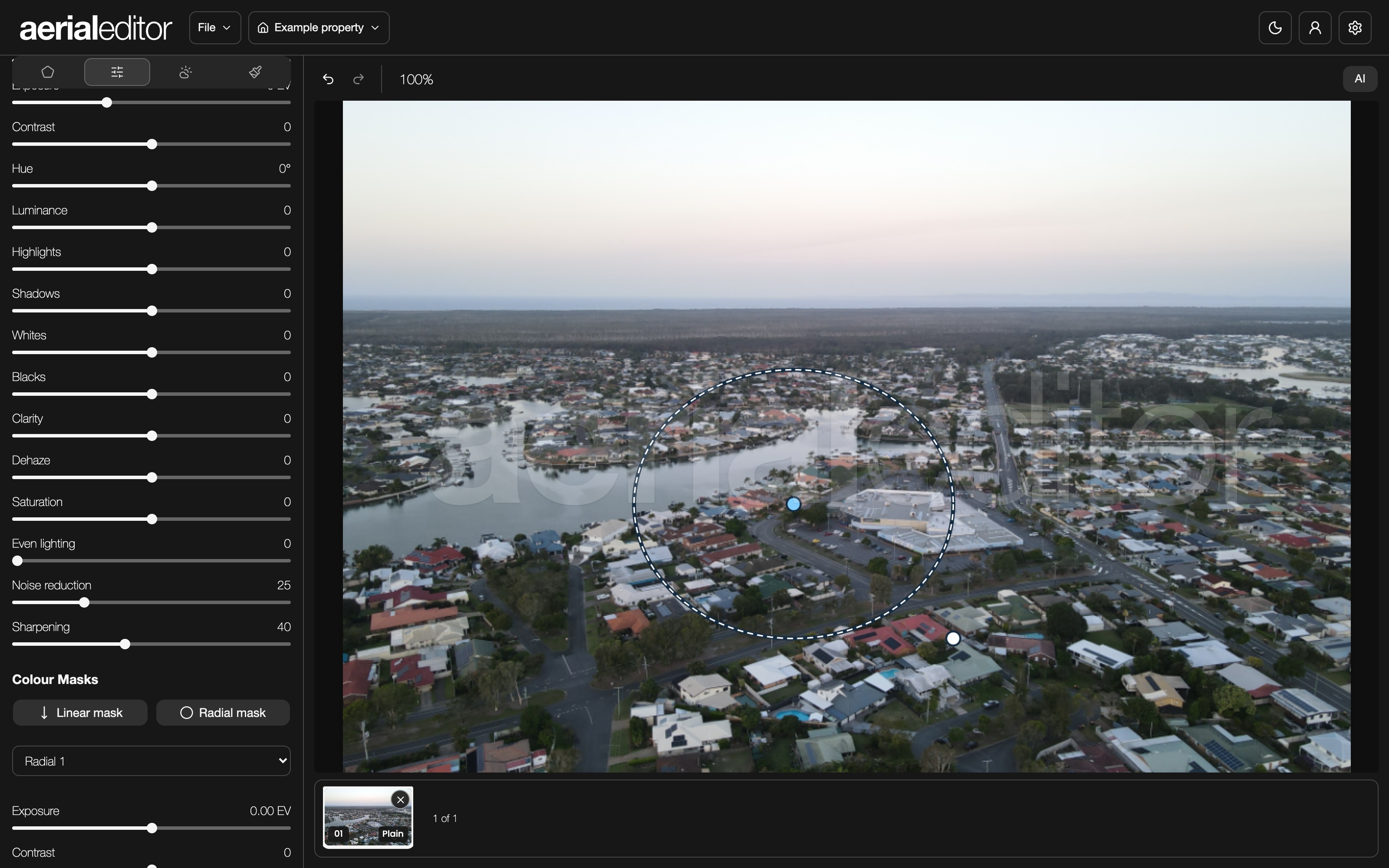
In Colour Masks, pick Linear mask for a band or Radial mask for a round area. Drag on the photo, then adjust that mask’s exposure, contrast, dehaze, temperature, tint and feather. Invert mask flips the affected area.
2Move or remove a mask
Select a mask from the list to adjust it. Move its on-image handles to change the area. Use the delete button to remove just that mask.
3Add a gradient
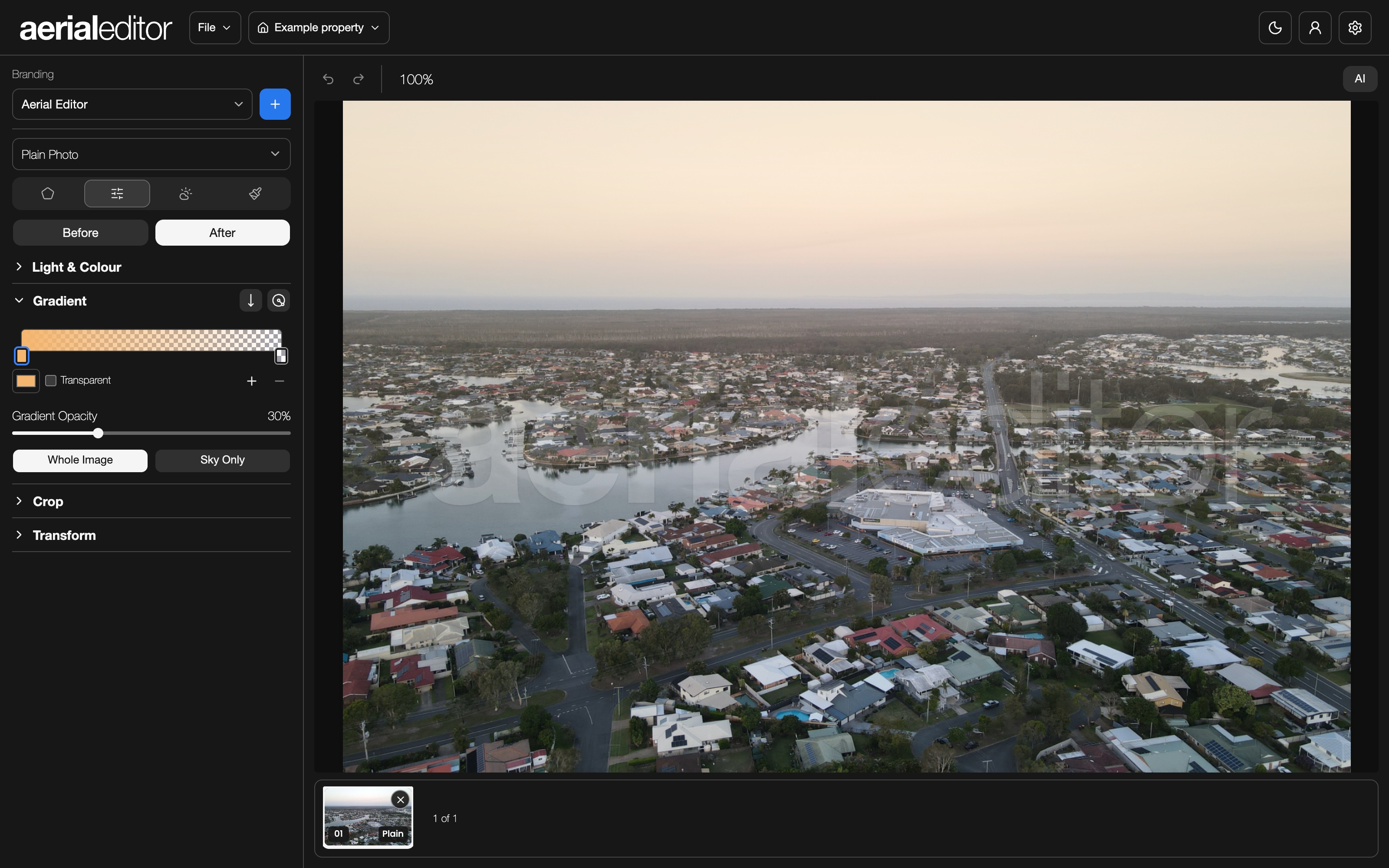
Open Gradient and choose Linear Gradient or Radial Gradient. Drag on the photo to place it, then set the colours and opacity. Choose Whole Image or Sky Only for the area it covers.
4Refine the fade
Drag the colour stops to change where the fade happens. Add a middle stop if you need a third colour. Transparent stops let the photo show through.
Colour → Crop / Transform
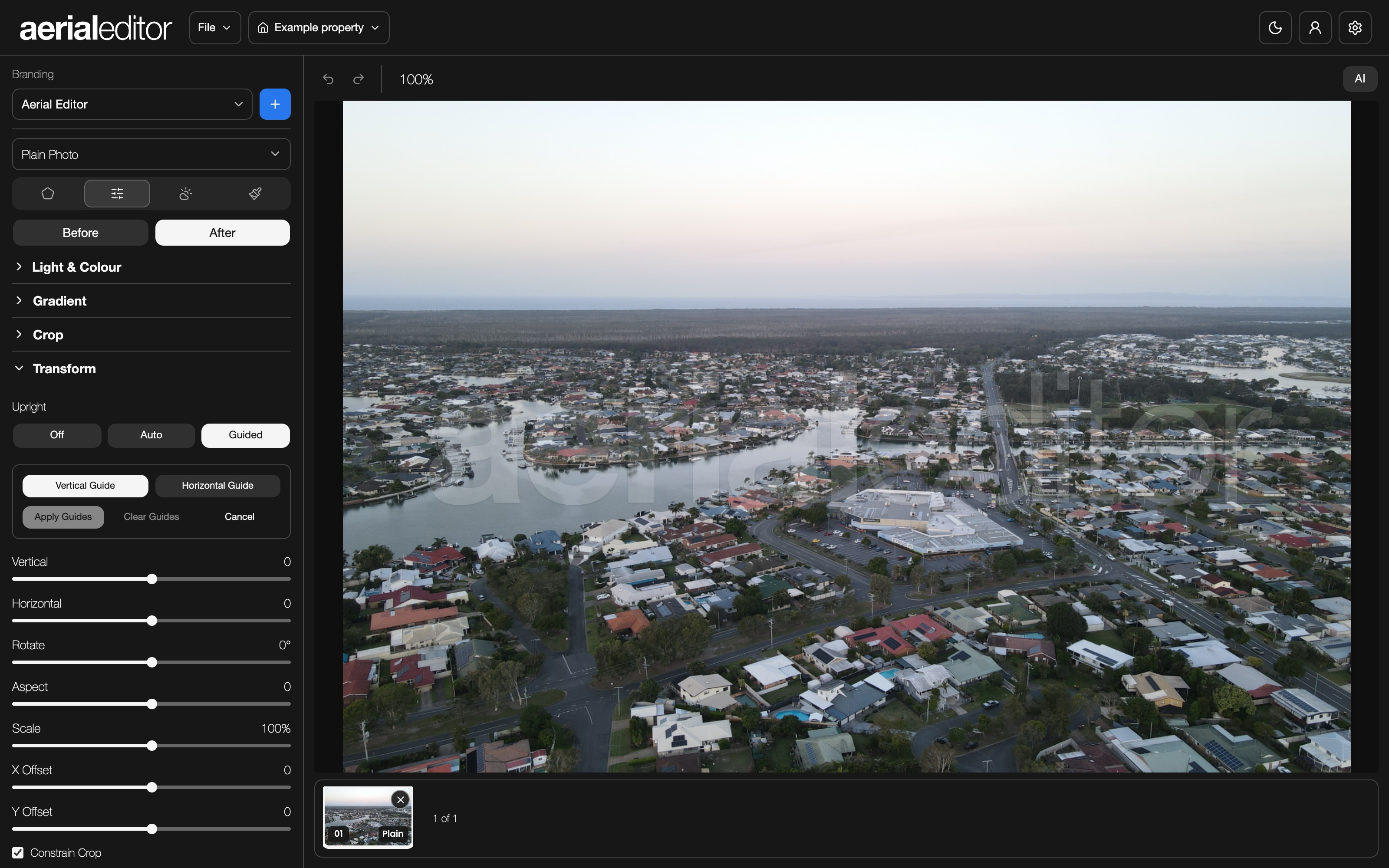
Crop & straighten
Clean up the framing and straighten leaning lines.
1Crop the photo
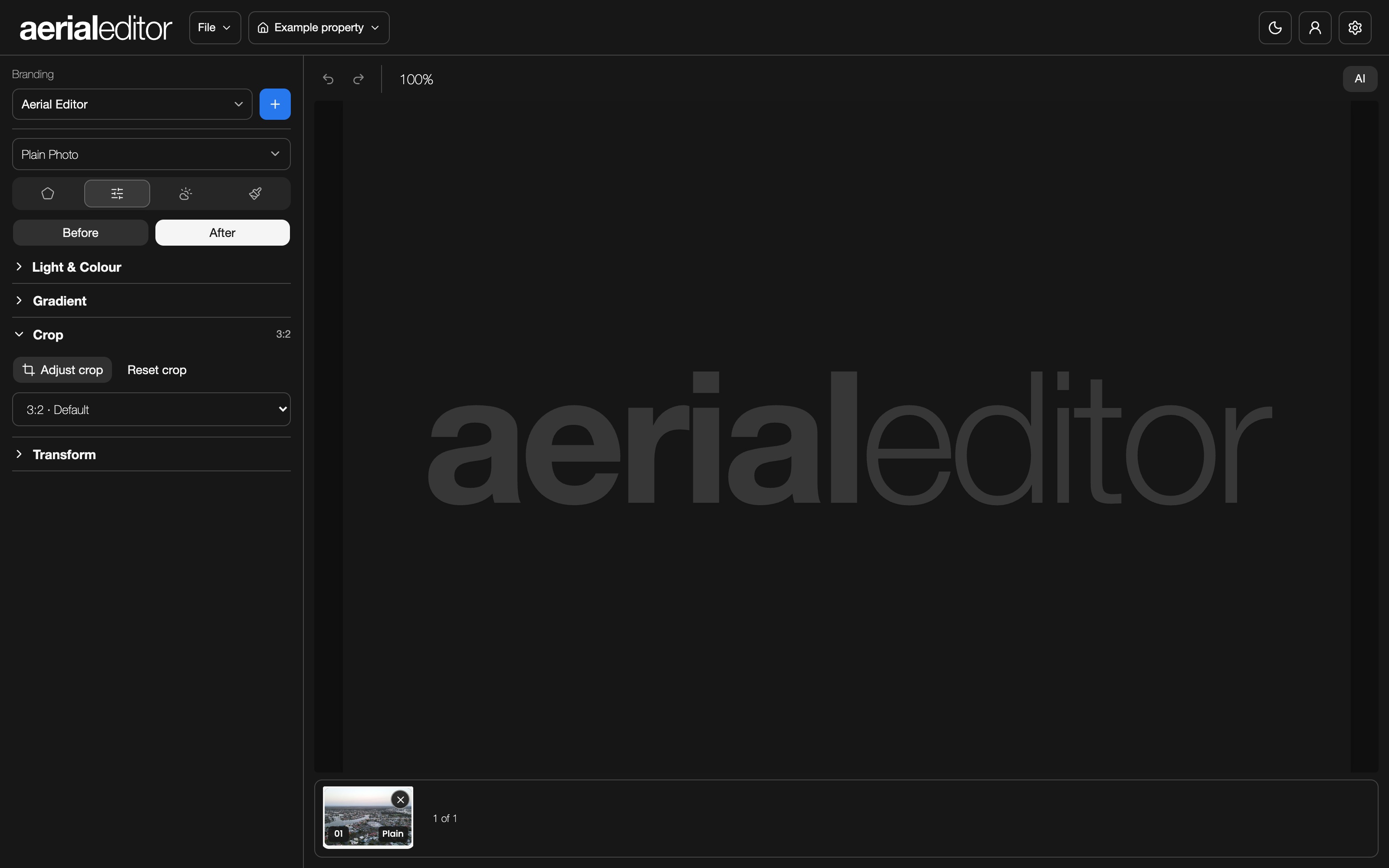
Open Crop and choose the image shape. Click Crop photo or Adjust crop, drag the frame into place, then Apply crop. Cancel leaves the previous crop in place.
2Try a quick straighten
Open Transform and choose Auto. Off turns Upright correction off. Use Rotate for a small horizon adjustment.
3Guide the correction
Choose Guided, then Vertical Guide or Horizontal Guide. Drag along lines that should be straight in the photo. Click Apply Guides. Clear Guides lets you start again.
4Fine-tune the frame
Vertical and Horizontal adjust perspective. Aspect changes proportions; Scale zooms the result. X Offset and Y Offset shift it. Constrain Crop keeps empty edges out; Reset Transform clears the transform.
Sky tab
Sky replacement
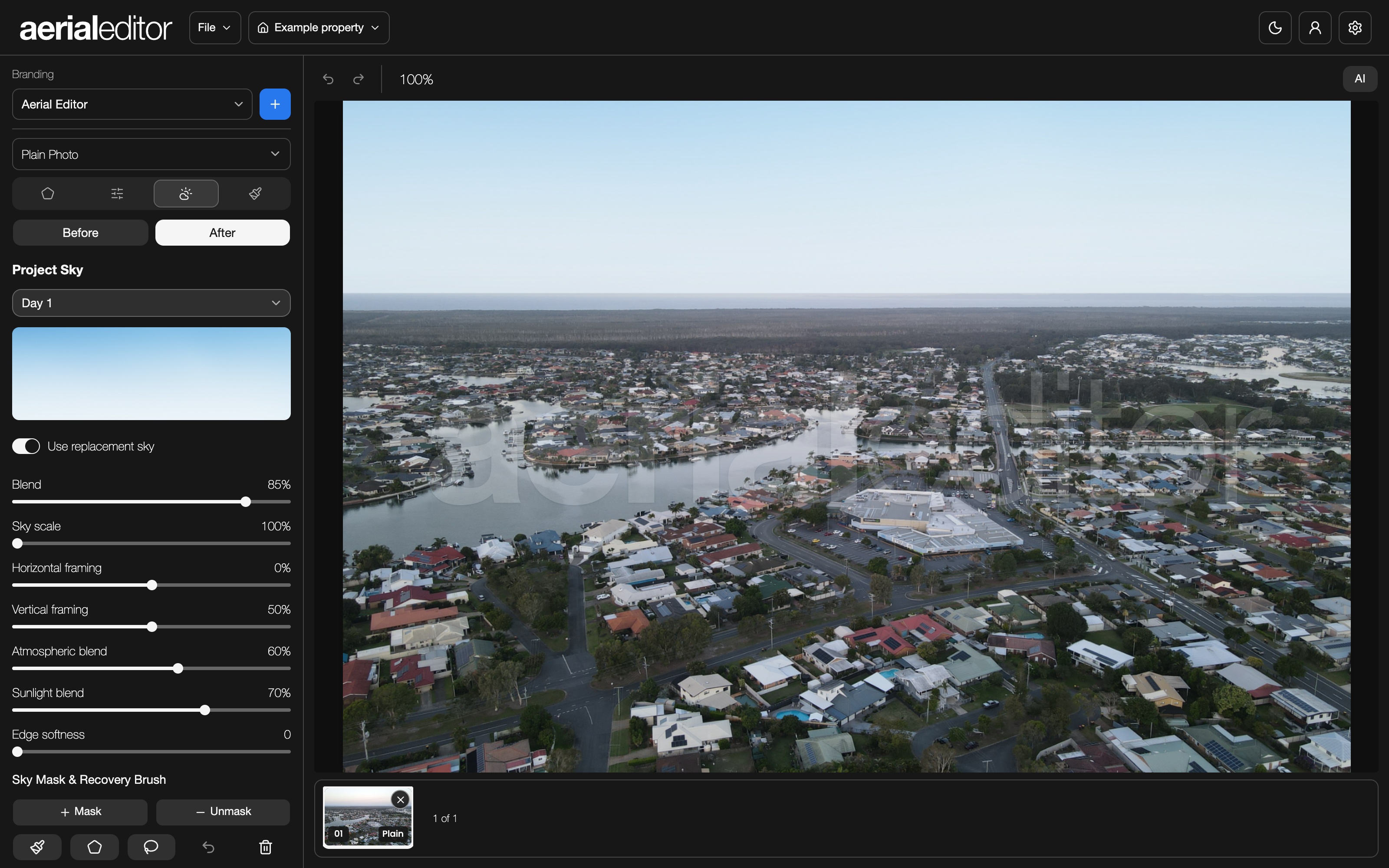
Choose a new sky and keep the skyline looking clean.
1Choose the sky
Pick a sky in the menu. That choice is shared across the shoot. Upload Sky lets you save your own sky privately to your account.
2Fit it to the scene
Turn on Use replacement sky. Blend controls its strength. Sky scale, Horizontal framing and Vertical framing position it.
3Blend the horizon
Atmospheric blend and Sunlight blend help the sky sit with the scene. Edge softness softens the skyline. Check trees, roofs and water at a closer zoom.
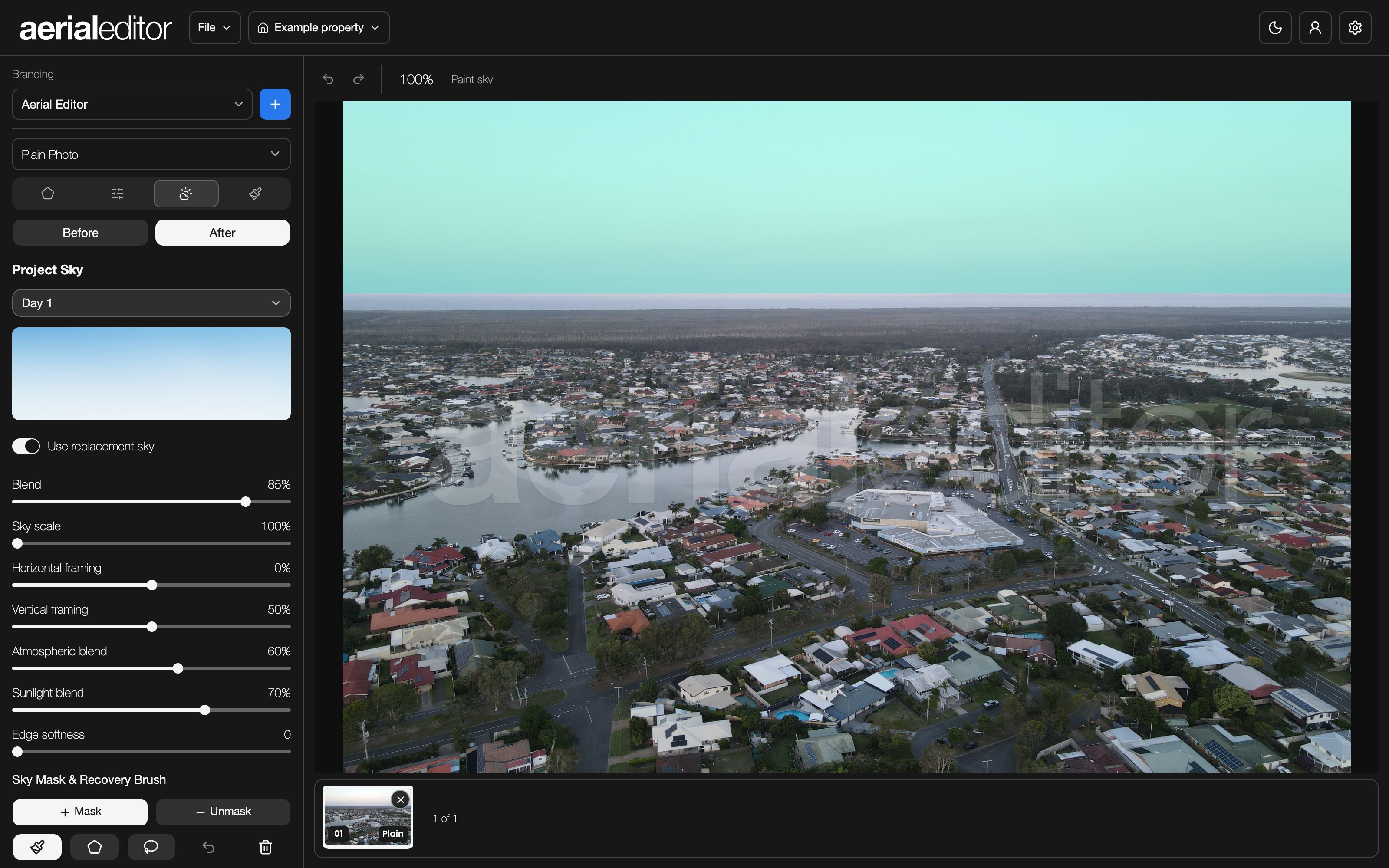
4Fix the mask
Mask adds replacement sky; Unmask brings the original photo back. Use Brush for touch-ups, Polygon for straight edges or Lasso for a freehand area. Show mask overlay makes the selected area easier to see. Click Done touching up when finished.
Retouch → Removal
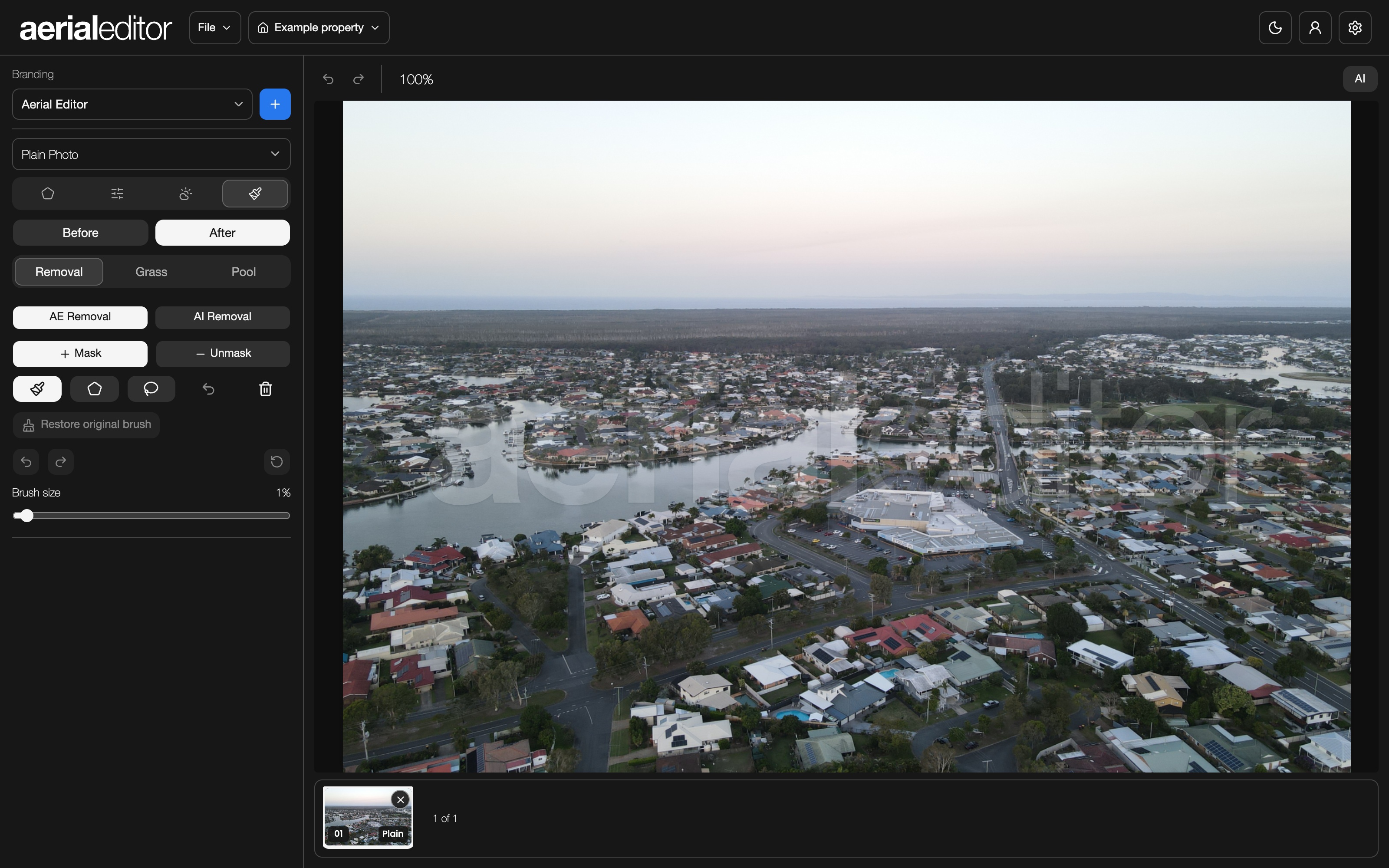
Object removal
Tidy a small distraction or send a trickier selection to AI.
1Choose the engine
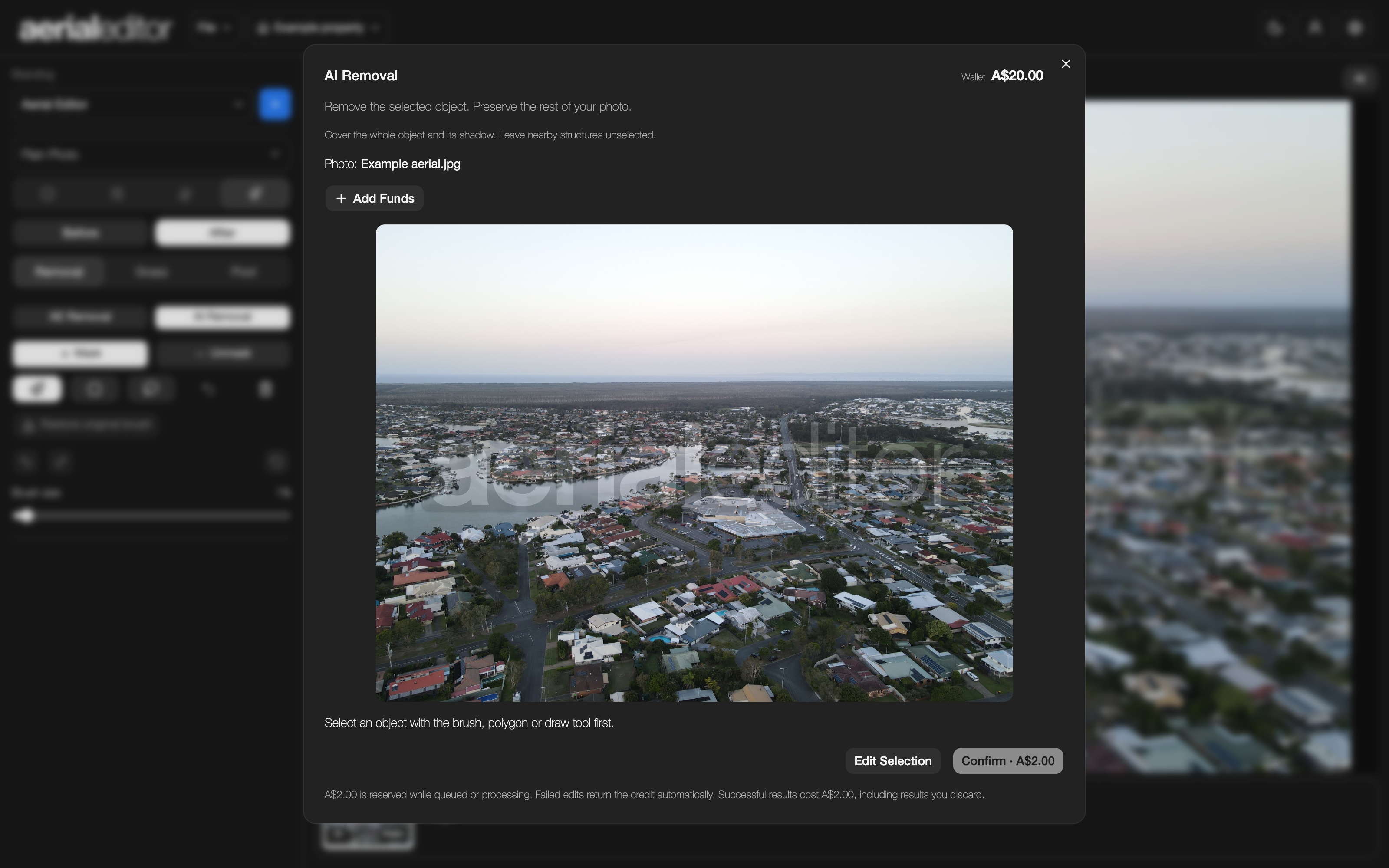
Removal uses FLUX with colour matching and is free for every account. Select an object and confirm Remove to queue the edit.
2Select the distraction
Use Brush, Polygon or Lasso. Cover the whole object and its shadow, leaving a little room around it. Unmask trims the selection without changing the photo.
3Let Removal finish
Confirm Remove to queue the selection. Continue editing or switch photos while it works. A spinner appears on the photo thumbnail, followed by a green tick when ready.
4Review an AI result
Open Review Removal when the result is ready. Compare Before and After, then Keep Removal or Discard. Click the photo thumbnail to clear its completion tick.
Retouch → Grass
Grass replacement
Freshen the lawn without painting over the rest of the garden.
1Find the lawn
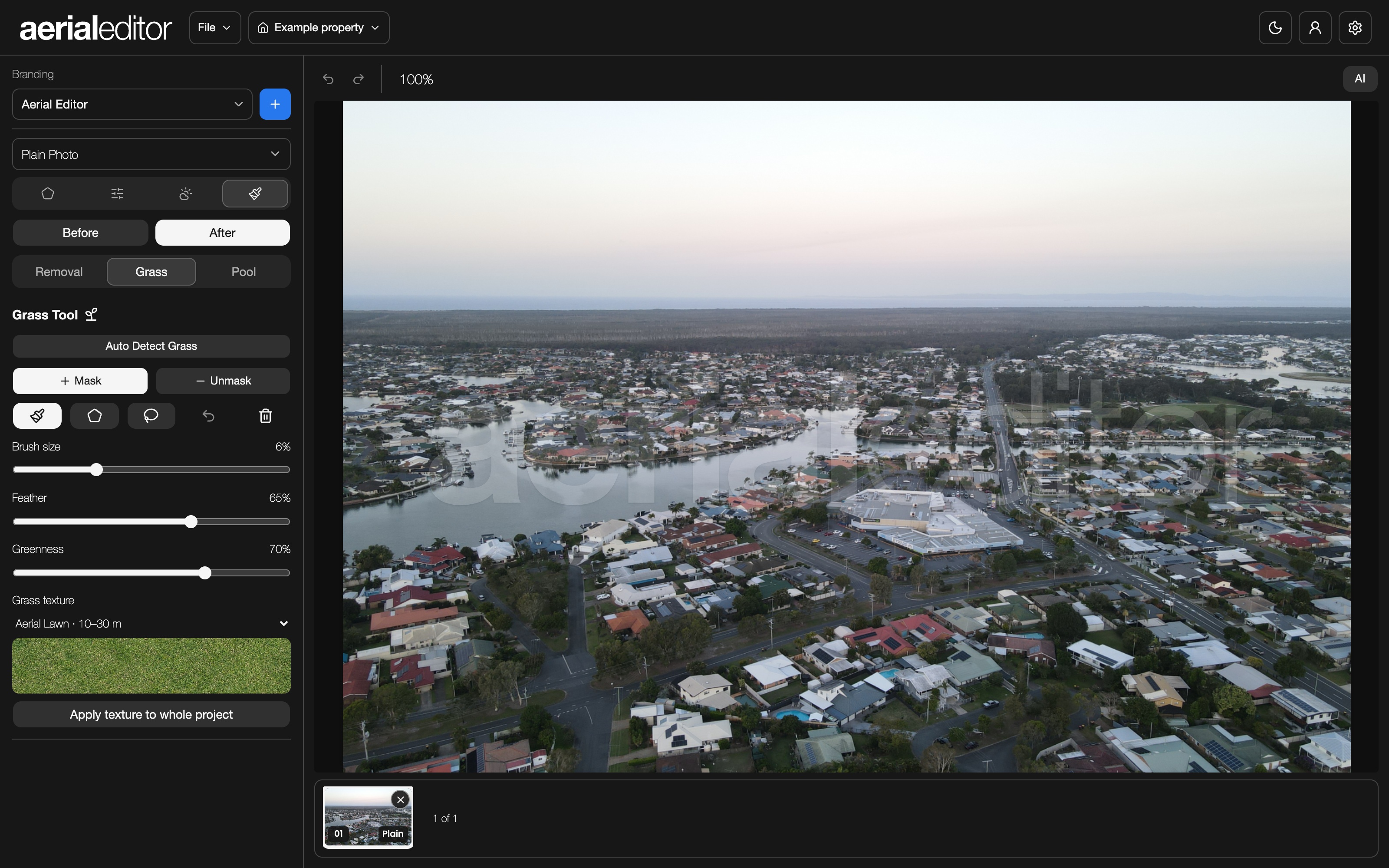
Click Auto Detect Grass to get a starting selection. The first run can take longer while the detector loads.
2Tidy the selection
Use Mask to add missed grass and Unmask to remove paths, trees or garden beds. Brush, Polygon and Lasso all work here. Undo removes the last selection stroke; Clear removes the selection.
3Choose the finish
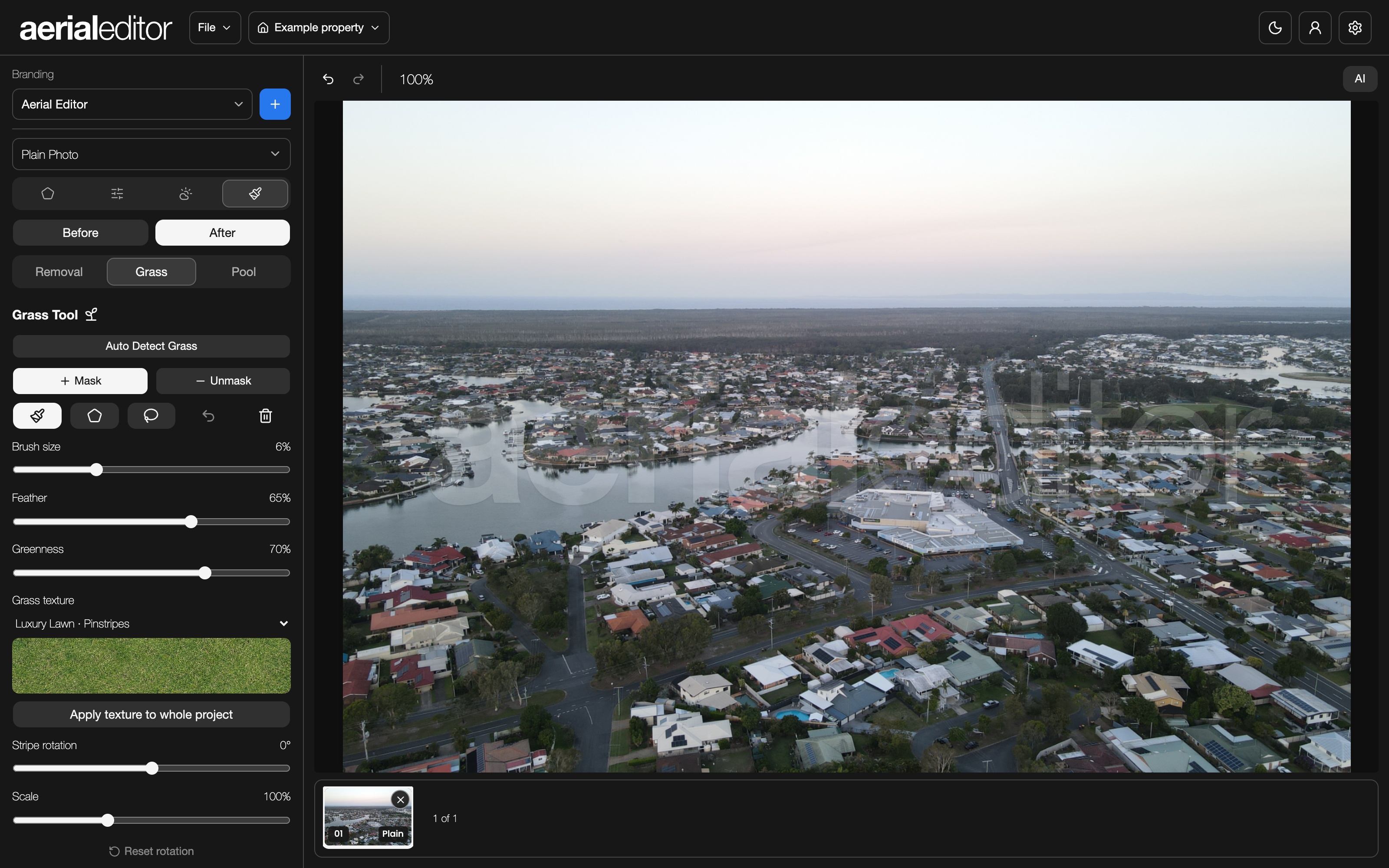
Pick a Photographed Lawn texture for natural turf detail. Greenness controls the strength and Feather softens the edge. Adjust Scale to match the scene; set Perspective to 0% for overhead photos or increase it for oblique views. Mown Stripes adds subtle bands with adjustable rotation. Existing textures remain available for older projects.
4Match the shoot
Apply texture to whole project shares the selected texture. Each photo keeps its own selection, strength and feather, so check them individually.
Retouch → Pool
Pool finishing
Bring back a clean blue pool while keeping its natural detail.
1Select the water
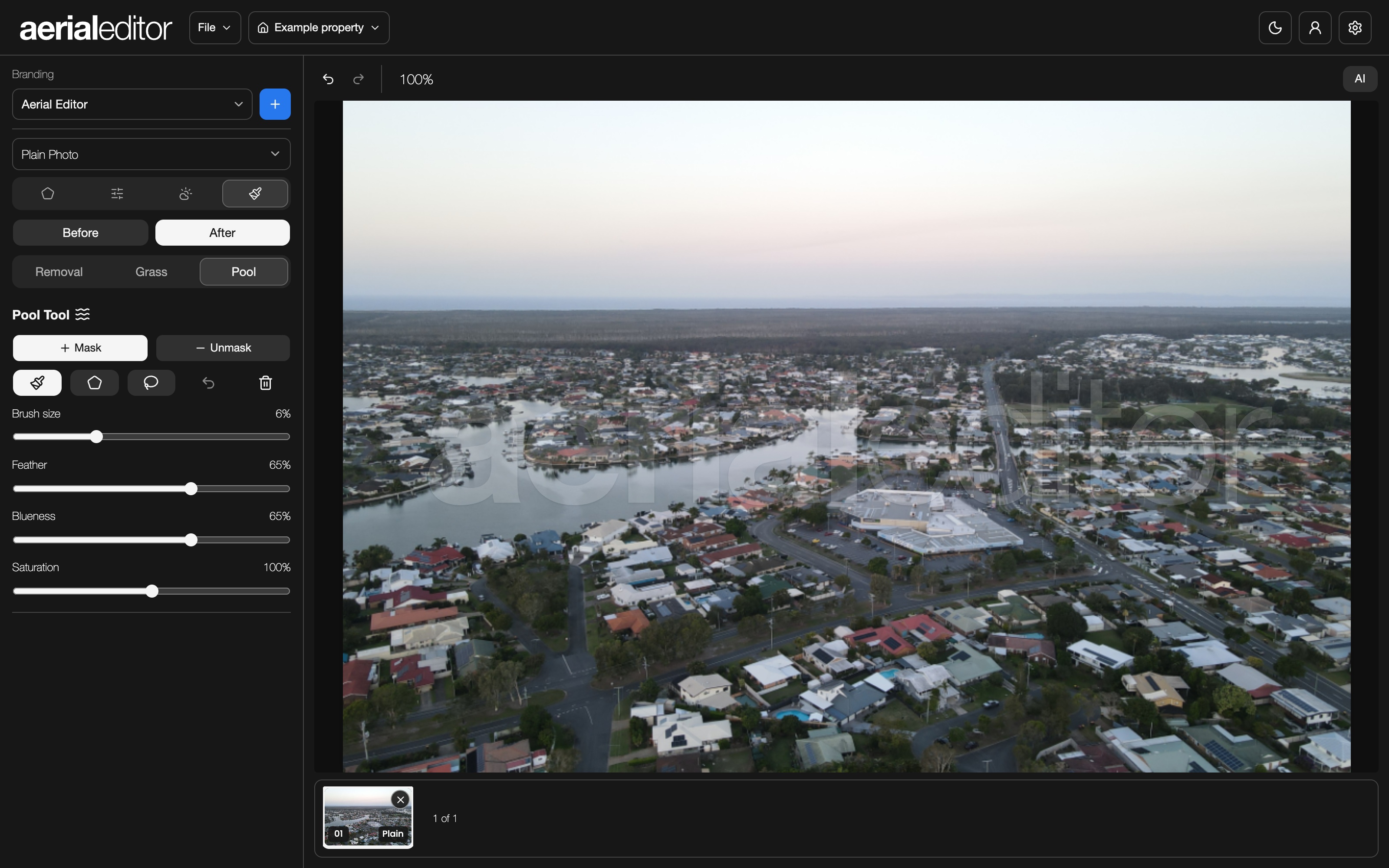
Use Mask with Brush, Polygon or Lasso to cover just the pool water. Leave coping, tiles and furniture outside the selection.
2Set the colour
Blueness changes the blue treatment. Saturation controls colour strength. Feather softens the selection edge.
3Clean the edges
Use Unmask to take the effect off anything you caught by mistake. Undo removes the last stroke; Clear removes the pool selection.
AI button above the image
AI Relight
Try a different time-of-day look on one photo.
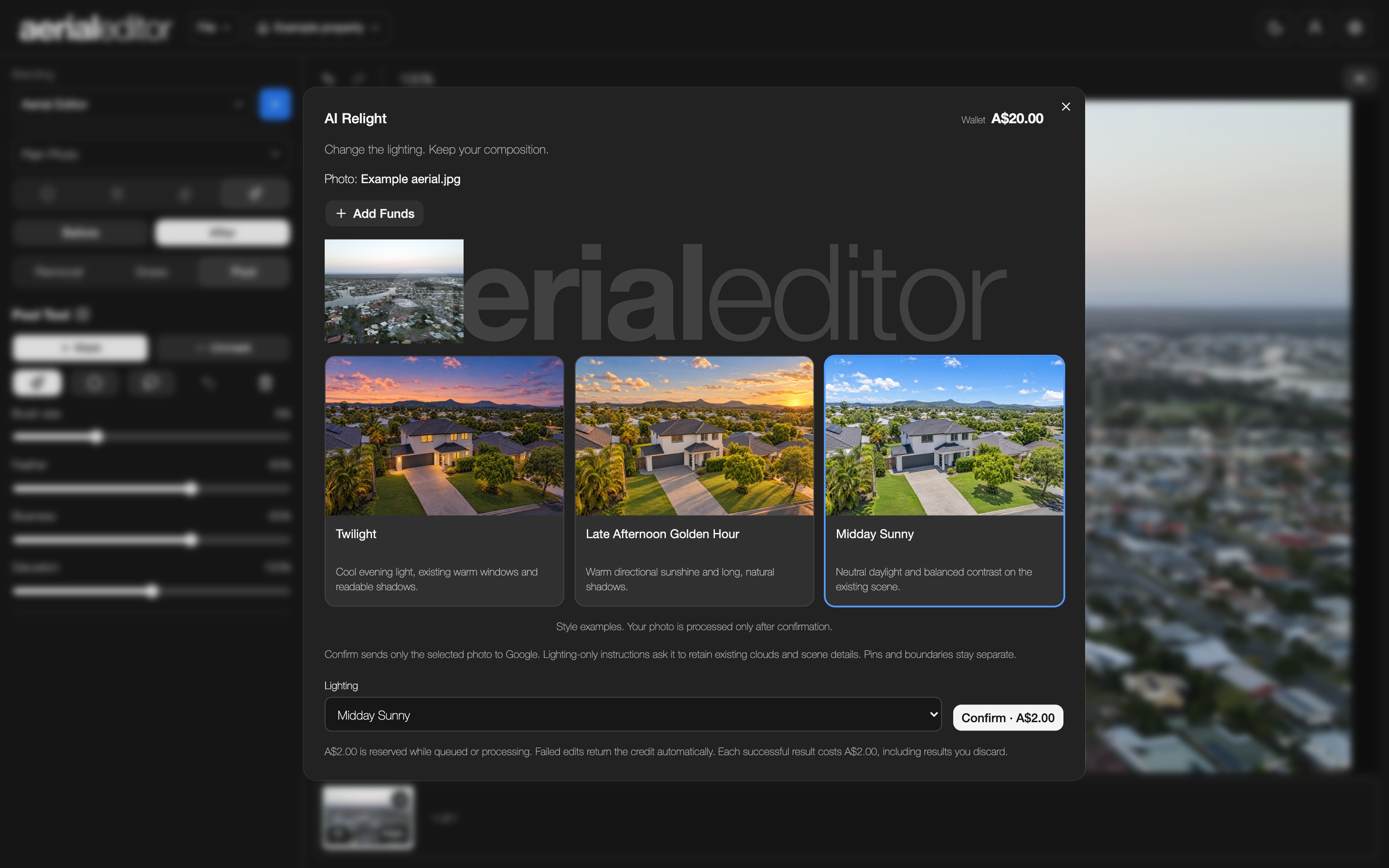
1Pick the look
Click AI and choose Midday, Golden Hour or Twilight. The style pictures are examples; your photo hasn’t been processed yet.
2Confirm when ready
Check the selected photo and price, then Confirm. You can close the window and keep editing while the request waits or runs.
3Compare the result
Reopen AI to compare Before and After. Check the building, horizon and important details. Keep Relight adds a separate photo beside the original; Discard leaves your original alone.
File menu
Save & export
Keep the editable project, then download the finished images.
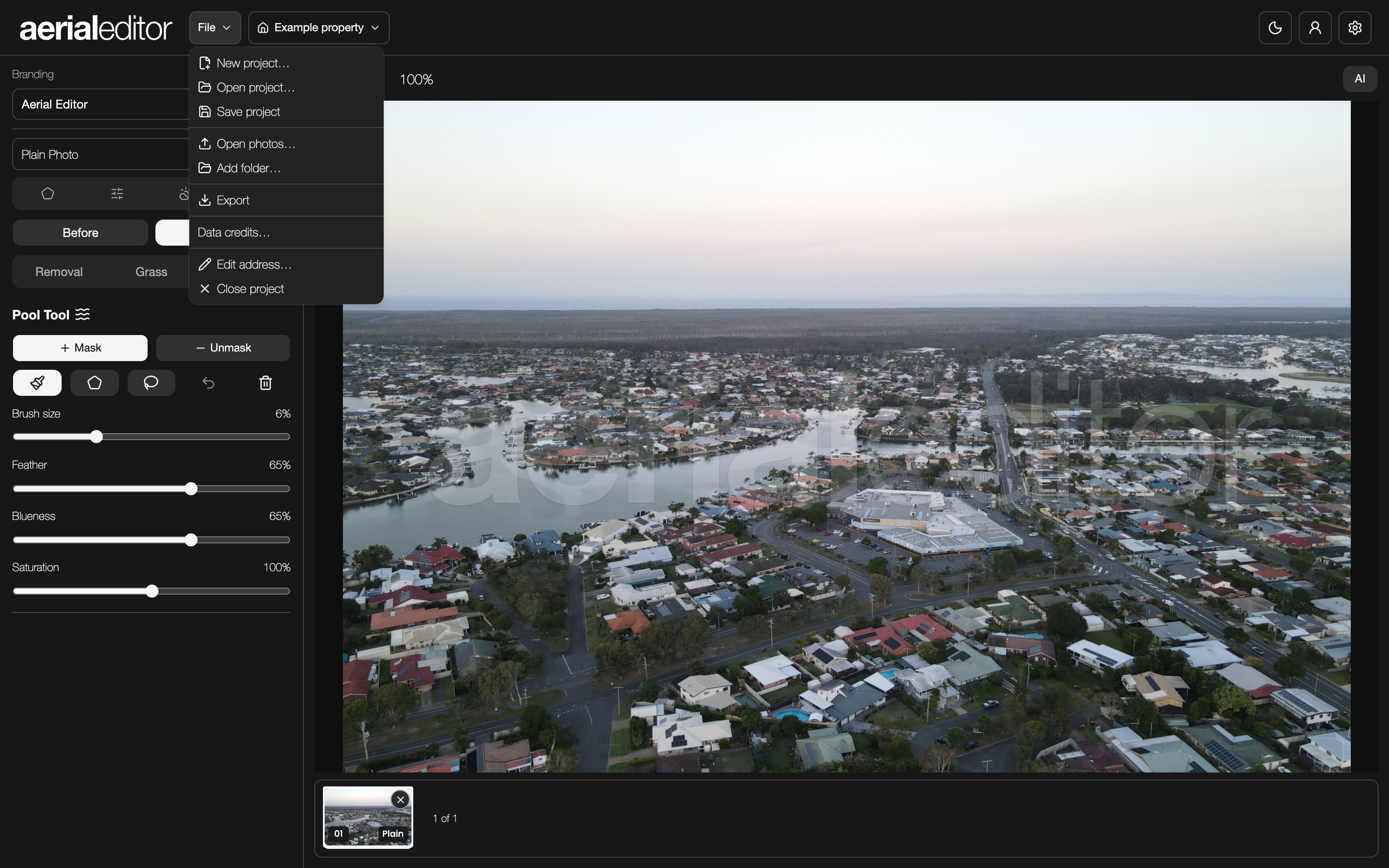
1Save your work
Choose File → Save project to download a .droneproject file. Keep it somewhere easy to find. File → Open project… brings the photos and edits back. You can also drop a .droneproject file onto the editor home screen.
2Manage another shoot
File → New project starts another property. Use the property-name menu to switch between open projects. Edit address… fixes the current address.
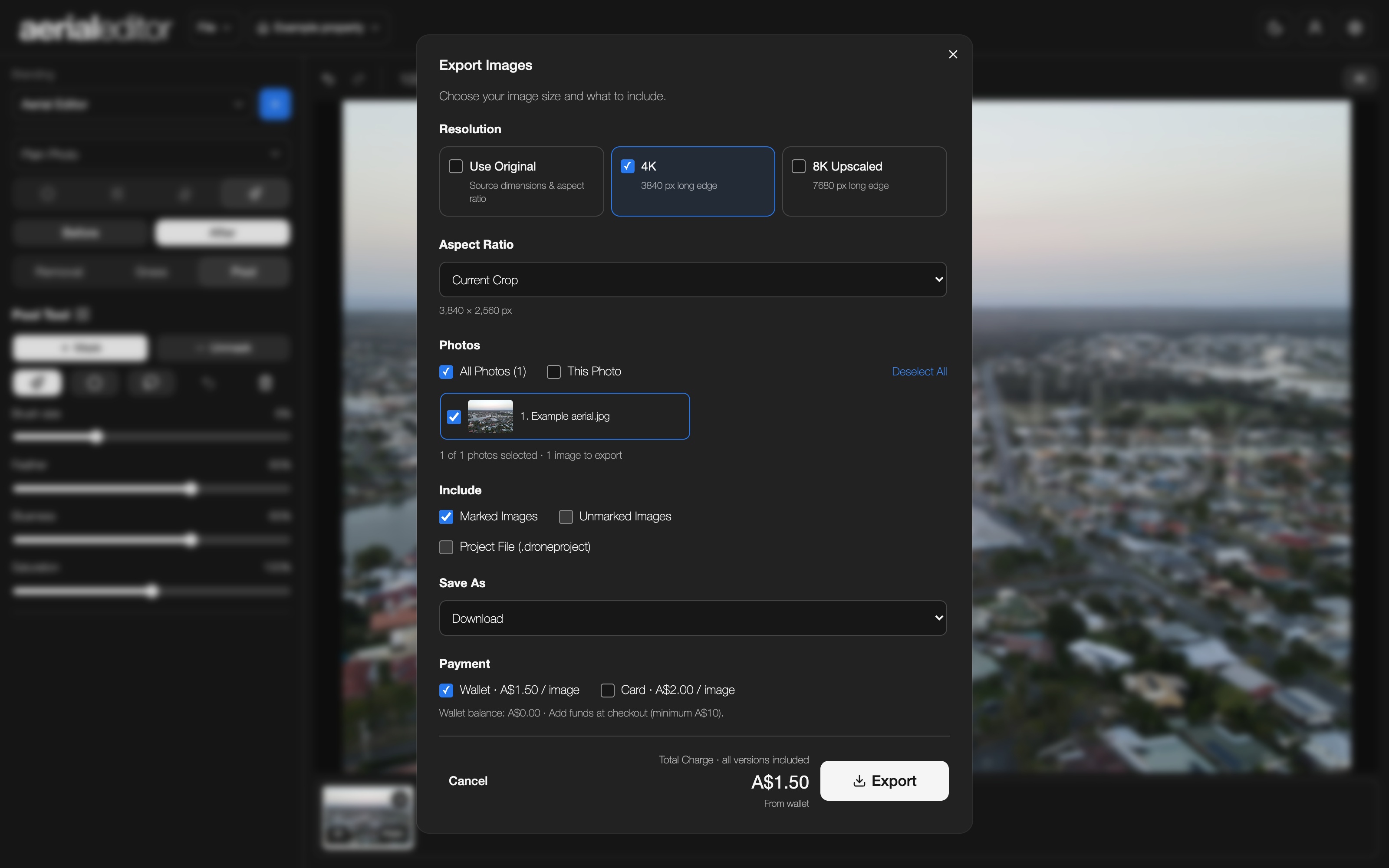
3Choose your export
Open File → Export. Pick This Photo or All Photos, then Original Source, 4K or 8K Upscaled. Choose the aspect ratio and Marked Images, Unmarked Images or both.
4Check and download
Review the quote, then export. Marked images include the property graphics; unmarked images leave those graphics off while keeping the photo edit. An 8K export is upscaled, so it can’t recreate detail the original never captured. One payment covers the photo’s marked and clean versions. ZIPs use the project address followed by Marked, Unmarked or both. Re-exporting revisions is free.
Settings gear, top right
Account, billing & settings
Update your details, manage cards and see your usage.
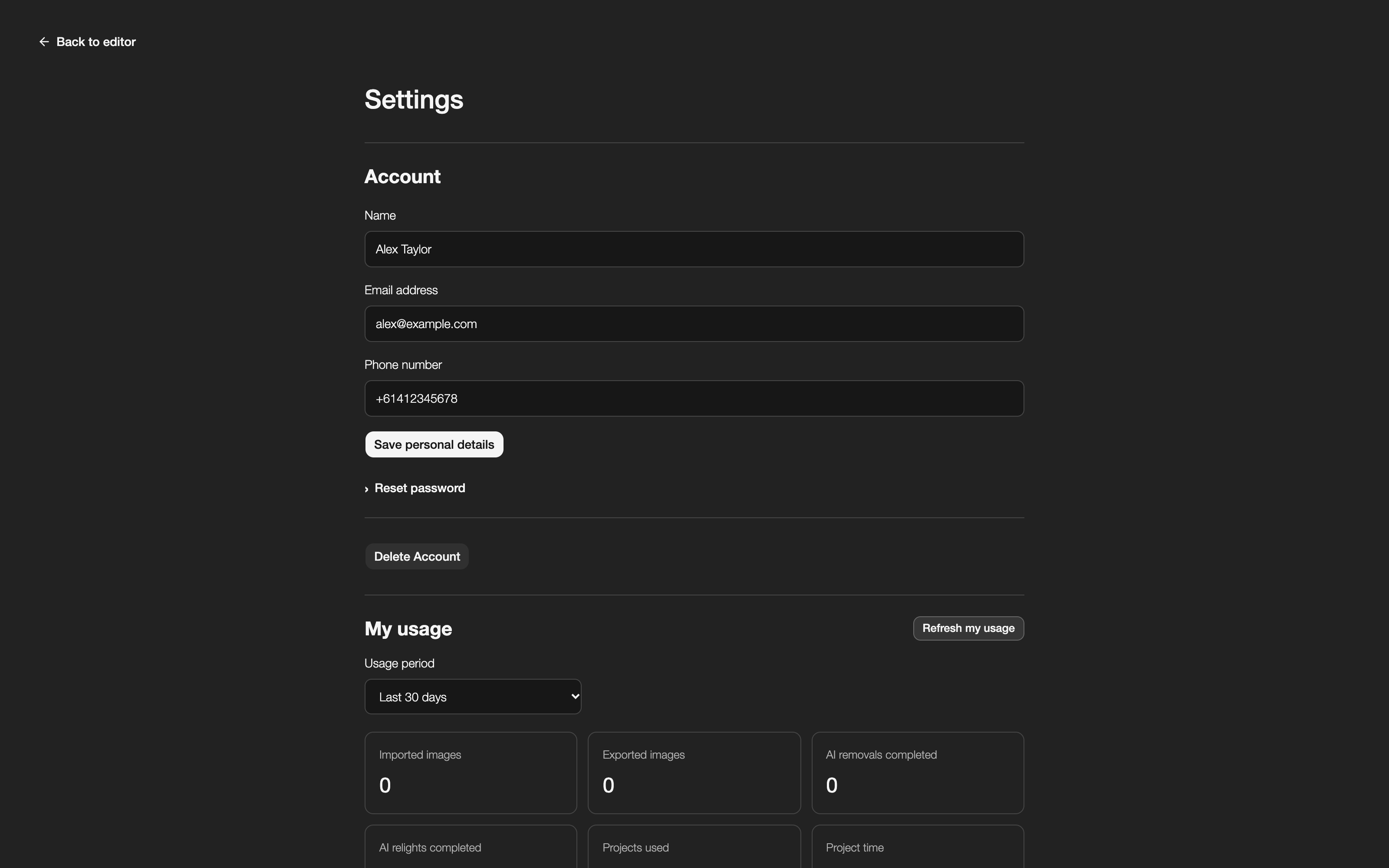
1Personal details
In Account, edit your name, email address or phone number and click Save personal details. An email change asks for your current password. Managed account emails may need support to change.
2Password and usage
Open Reset password to set a new password using your current one. My usage shows imports, exports, AI activity and project time for the period you choose.
3Saved cards
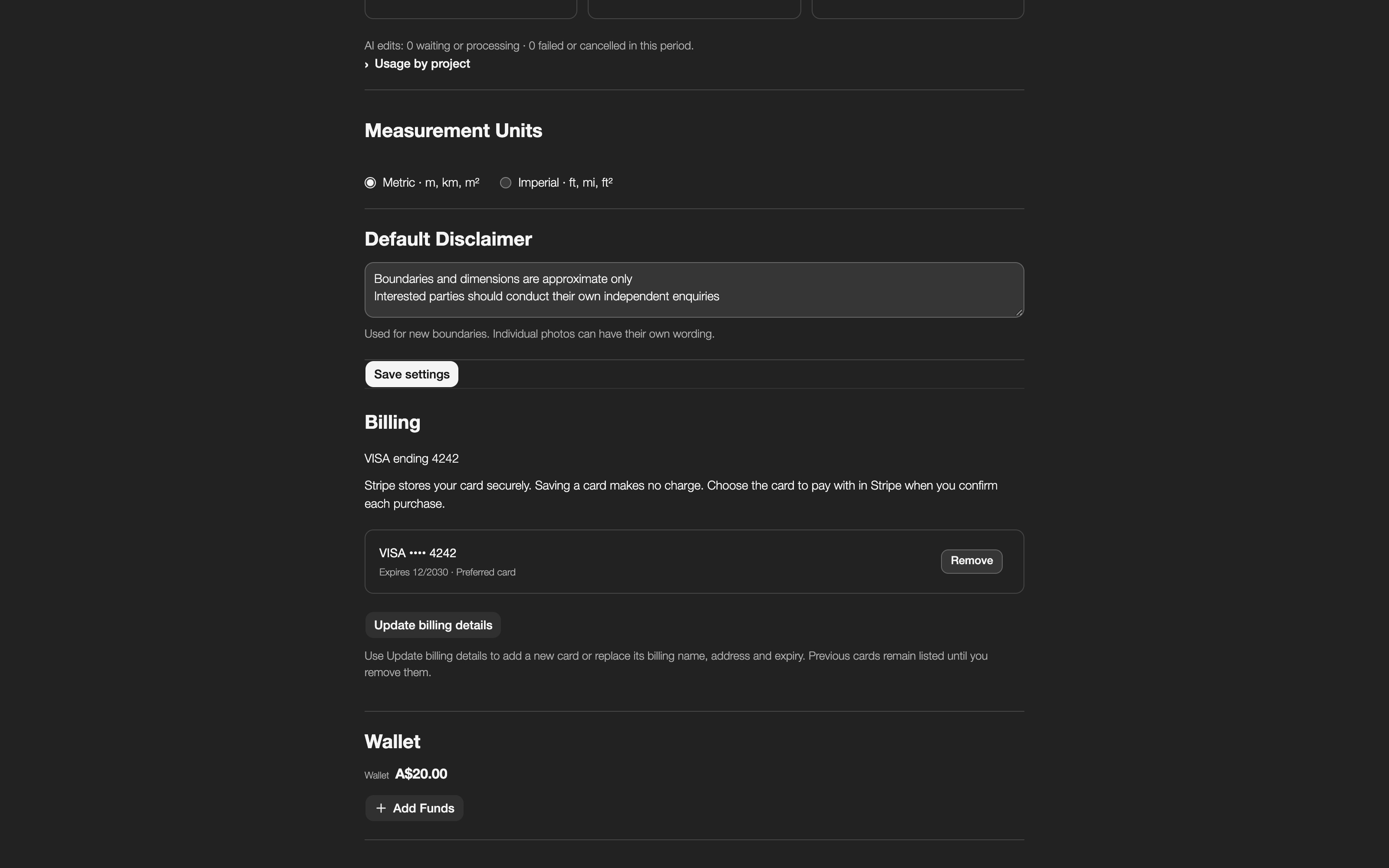
In Billing, use Update billing details to add a card or update its billing details through Stripe. Use as preferred selects a saved card; Remove deletes an old one after confirmation. Choose the payment card in Stripe when you confirm a purchase.
4Wallet and preferences
The wallet section lets you add funds for eligible exports and AI edits. Measurement Units switches between metric and imperial. Default Disclaimer supplies the wording for new boundaries. Click Save settings to keep those preferences.
More about this tool
- Closing your account
- Delete Account starts the closure process and asks you to confirm. Finish any queued or processing AI edits first, and save your project files before closing the account.
A few handy basics
Mask = add. Unmask = take away.
Brush paints an area. Polygon uses clicks around the edges—close it at the first point. Lasso lets you draw around an area. Feather softens the edge. You’ll see these same tools in Sky, Grass, Pool, Removal and Boundary.
Zoom, move, undo.
Scroll over the photo to zoom. Hold Space and drag, or use the middle mouse button, to move around. Use ⌘/Ctrl + Z to undo and ⌘/Ctrl + Shift + Z to redo. The undo arrows above the photo work too.
Something taking a moment?
DNG files and a tool’s first model download can take longer. Keep the tab open while it works. If an AI edit is queued, you can keep editing and check its progress later. Use the visible Cancel or Retry controls rather than submitting the same request again.